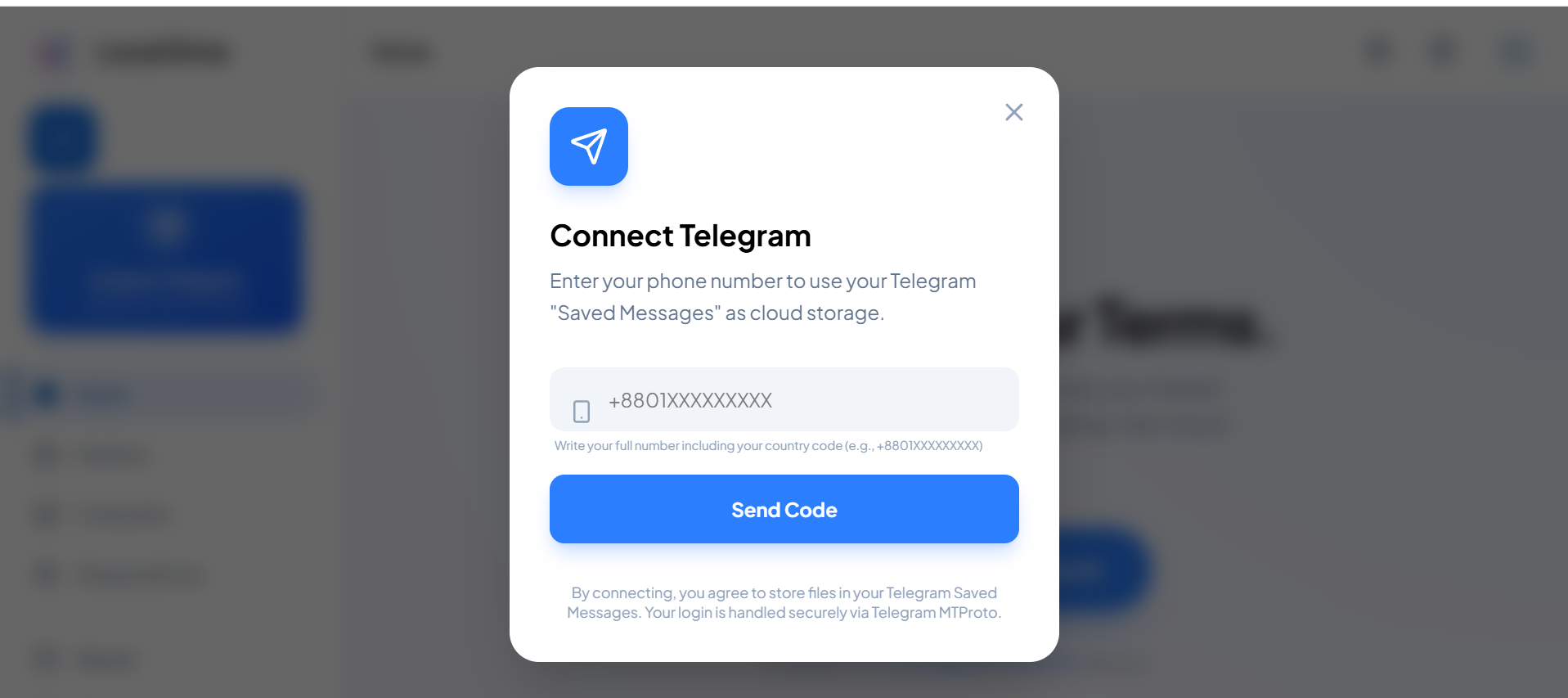
1. Connect
Start by signing in and connecting the cloud layer that Local Drive uses for storage. Your account stays at the center of the workflow, while the app handles organization, browsing, and access in a cleaner way.
How it works
Local Drive uses a Telegram-style cloud workflow where your connected account becomes the storage base, while Local Drive gives you a polished drive-like interface on top.
Link your cloud account and make it the storage base for Local Drive.
Add files from Android, Windows, external drives, downloads, and folders.
Browse by folders, file type, recent files, starred items, shared files, and trash.
Check names, types, previews, and details before downloading.
Start by signing in and connecting the cloud layer that Local Drive uses for storage. Your account stays at the center of the workflow, while the app handles organization, browsing, and access in a cleaner way.
Upload from phone storage, PC folders, desktop, downloads, or connected external drives. Local Drive is built for images, videos, PDFs, archives, app installers, project files, and release builds.
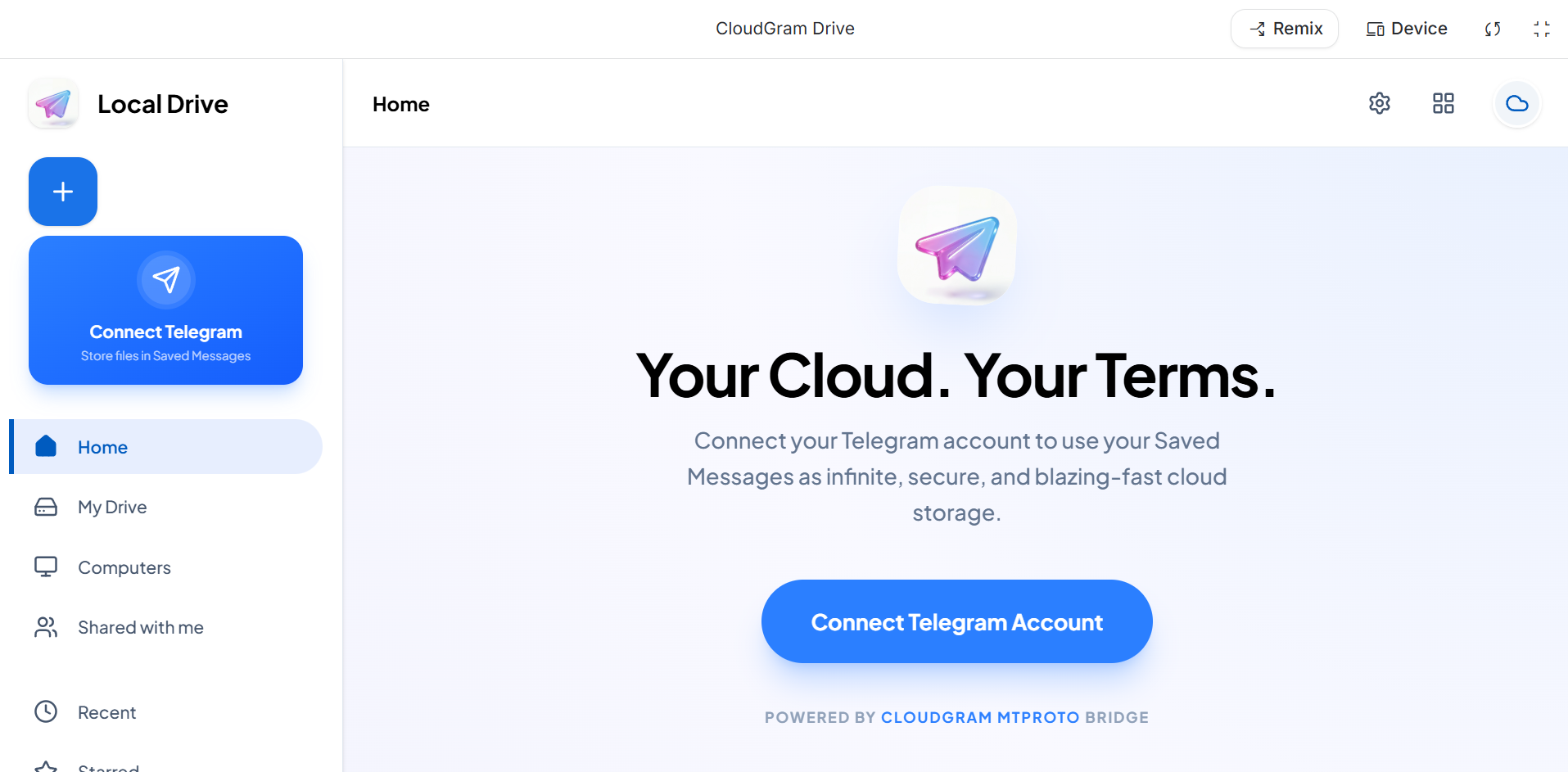
Keep everything inside a clean drive-like structure so study files, work folders, media files, software builds, and personal documents are easy to return to.

Use file names, file types, preview details, and organized browsing to avoid downloading the wrong file, especially when you have versions or large media files.

Upload once, keep files organized, and download again when needed. Android and Windows are available now; iOS, macOS, and Linux support is planned.

Real storage is not always neat. Some files are tiny documents. Some are large videos, app builds, screenshots, project folders, compressed files, or personal media.
Local Drive gives you one clean place to keep different types of files together without making the experience feel messy.